Cancel a Task
This article explains how to cancel tasks in the roommaster Web housekeeping module.
Overview
Task cancellation is used when a cleaning task cannot be completed due to circumstances beyond the housekeeping staff's control. Only tasks that have been marked as incomplete or that have failed inspection can be cancelled.
Cancelling a Task
Access Task Details
- Navigate to Room List - Go to the room list view
- Locate Incomplete/Failed Task - Find the room with the incomplete or failed task you want to cancel
- Click on Room - A side panel will open showing room and task details
- Click Cancel Button - Click the "Cancel" button in the side panel
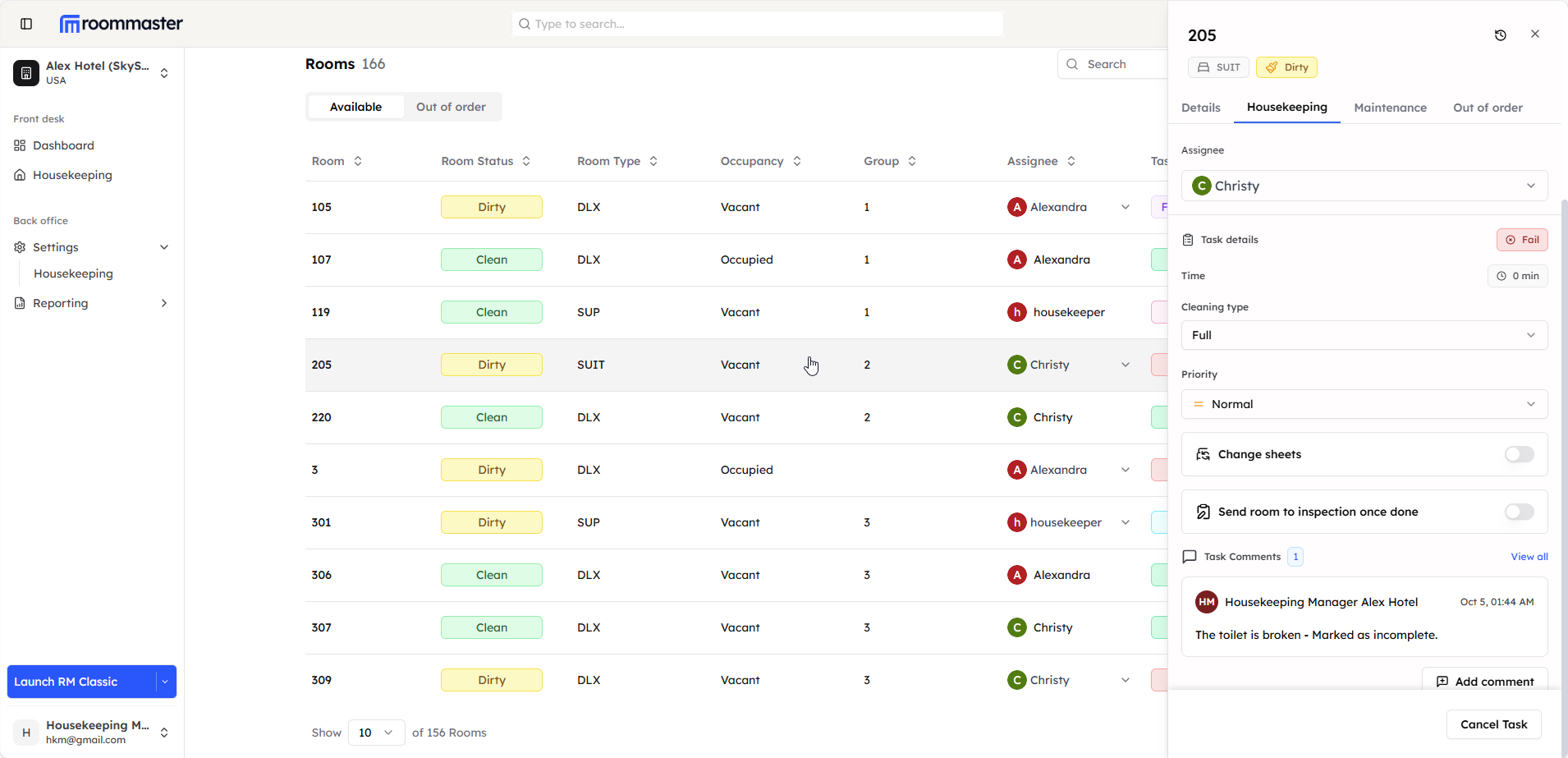
Cancel Process
- Modal Opens - A modal will open with:
- Reason Field - Add a reason for cancelling the task
- Add Reason - Provide a reason for cancellation
- Confirm Cancellation - Click to confirm the cancellation
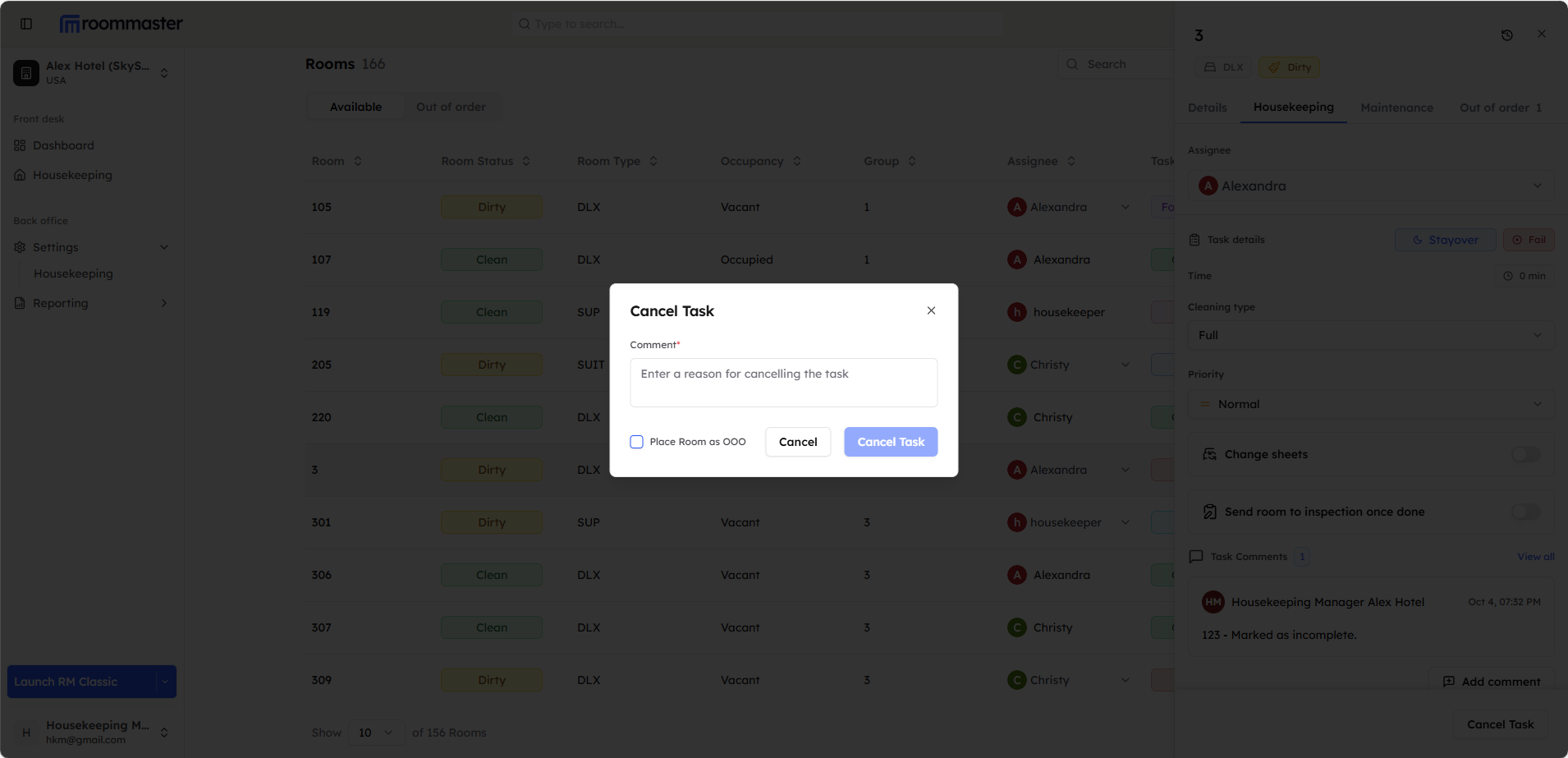
Task Status Update
After cancellation:
- Task Status - Changes to "Cancelled"
- Room Status - Room remains "Dirty"
Room Out of Order
Placing the room out of order and setting the start day to today moves the room status to "Out of Order". If the room has an active task, it will be automatically cancelled.
Best Practices
- Clear Communication - Inform relevant staff about cancellations
- Documentation - Always provide clear reasons for cancellations
- Timely Action - Cancel tasks promptly when circumstances change
Reopening Cancelled Tasks
If a cancelled task needs to be completed later:
- Access Task Details - Open the cancelled task
- Select Reopen - Choose the "Reopen" option
- Update Status - Change status to "New" or appropriate state
- Reassign if Needed - Assign to appropriate housekeeping staff
Still Need Help?
For additional assistance with task cancellation:
- Contact support at support@roommaster.com
- Visit our Knowledge Base